TagRanger®

Mapping Functions

The Track tab on the TagRanger® App is where your interactions with deployed Tags are controlled, with Tag positions overlayed on to a map

The map can be dragged around with one finger and supports the pinch-to-zoom function. Key features of the mapping interface are described below, see also the pages on performing a FIND and LOCATE for further details on the menu functions for these features.

Mapping1
Mapping Icons

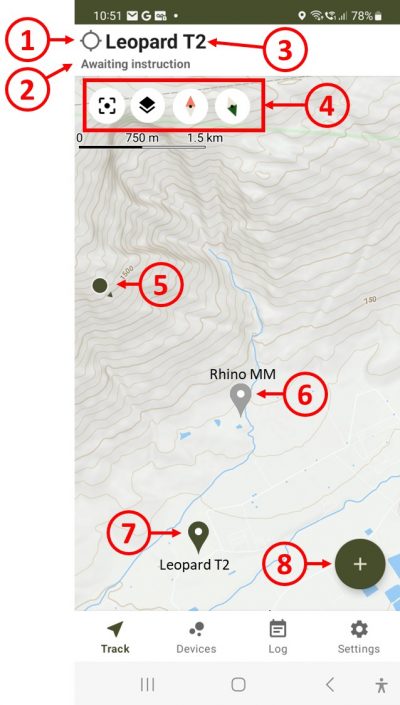
1 - Activity indicator. Spins to indicate a function is in progress. A black dot appears when an action is confirmed and spinning continues.
2 - Description of current operation status
3 - Name of the active Tag
4 - Map control buttons:

Mapicon1    Zoom the map to fit your location and the pin of the active Tag on the screen

Mapicon2    Change the map layer from default to satellite view

Mapicon3    Compass. Tap to align the map to North.

Mapicon4    Tag direction. Tap to align the map with the direction of your Tag. Straight-line distance to the Tag is shown below the indicator.

5 - Your position with an arrow to indicate your heading
6 - Last known position (pin) of the named Tag. Grey indicates this is not the active Tag. If you tap a grey pin it will make that Tag the active Tag
7 - Last known position (pin) of the active Tag. The active Tag pin is dark green.
8 - Menu expansion button
 

Mapping2


Pin Operations

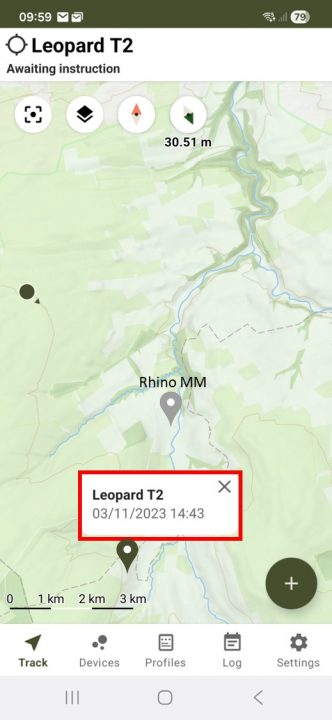
Press and hold any pin to pop up a box indicating the time and date of the location

Change the active Tag by tapping on any grey pin

Tag GPS waypoints and tracking display

You can display all the GPS locations (Waypoints) for a Tag on the mapping screen and connect them together with a line which indicates the direction of travel. Waypoints can be loaded into the App in two ways:

  • Doing a Log download from the Tag Using the Bluetooth connection or the UWB data download using the Finder)
  • Downloading the Tag locations stored on the Finder (as a result of ping locations)

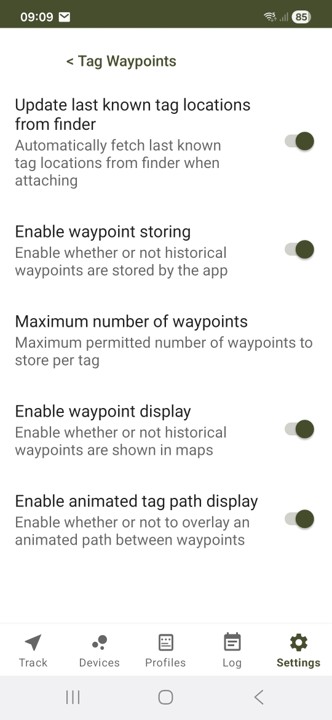
The settings that enable/disable waypoint display can be found on the settings tab of the App: Settings > Device Management > Tag Waypoints

On-screen tools are also available to tailor how many waypoints are shown at any time.

Mapping5
Tag Waypoint Settings

Update last known Tag locations from Finder - Allow the App to download all the known GPS locations from the Finder when you attach it to your phone. To delete locations from the Finder (but not the App), use the Logs>Erase menu from the Finder settings on the Devices page.

Enable waypoint storing - Allow the App to store waypoints

Enable waypoint display - Turn the waypoint display on or off

Enable animated tag path display - Add an animated trace between all the waypoints so you can see the journey of your Tag


Mapping4
Using waypoints on the map

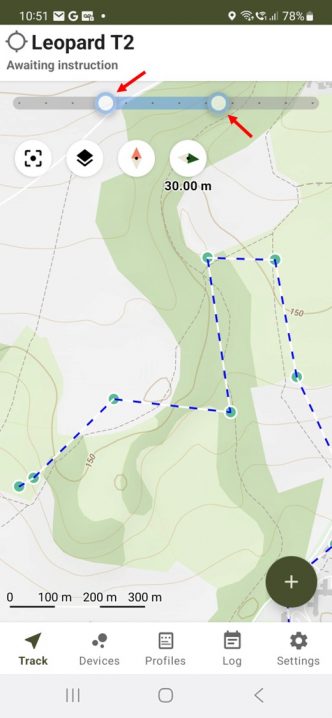
When viewing waypoints on the mapping screen you can filter out waypoints by adjusting the view bar at the top of the screen. Simply drag either of the circles indicated with the red arrows to filter out waypoints by time and date


Mapping3


Download Offline Maps

1 - Move the map to the location where you wish to download the map for offline use.

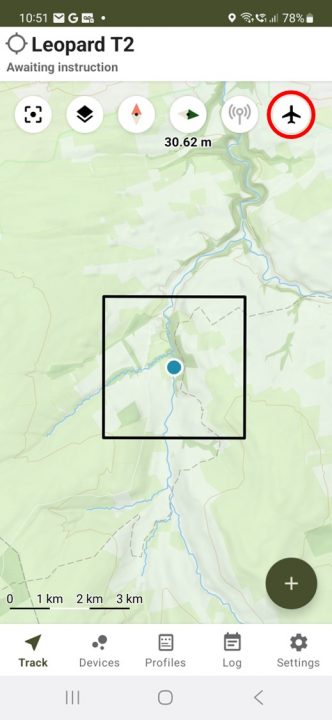
2 - Press and hold the centre of the area you want to download and a black square will appear approximately 3km x 3km in size

3 - Tap the aeroplane icon in the top right of the screen to download the map

You can manage offline map regions and the map tile provider in the Settings page of the App.